Logging
Terminal.Gui provides comprehensive logging of library internals via the Logging class. Logging helps diagnose issues with terminals, keyboard layouts, drivers, and platform-specific behavior.
Important
Do not use console loggers - they interfere with Terminal.Gui's screen output. Use file, debug output, or network-based sinks instead.
Quick Start
Set the global logger at application startup:
using Microsoft.Extensions.Logging;
using Terminal.Gui;

// Create any ILogger (file-based recommended)
Logging.Logger = myFileLogger;

// Now all Terminal.Gui internals log to your logger
Application.Init();
Application.Run<MyWindow>();
Application.Shutdown();
API Overview
The Logging class provides:
| Member | Description |
|---|---|
Logger |
Gets/sets the global ILogger instance (default: NullLogger) |
PushLogger(ILogger) |
Pushes a scoped logger for the current async context; returns IDisposable |
Trace(message) |
Logs verbose diagnostic information |
Debug(message) |
Logs debugging information |
Information(message) |
Logs general operational messages |
Warning(message) |
Logs unusual conditions |
Error(message) |
Logs error conditions |
Critical(message) |
Logs fatal/critical failures |
All log methods automatically include the calling class and method name.
Global vs Scoped Logging
Global Logger (Default)
Set Logging.Logger once at startup. All Terminal.Gui code uses this logger:
Logging.Logger = CreateFileLogger();
// All logging goes here until changed
Scoped Logger (Advanced)
Use PushLogger() to temporarily redirect logs for the current async context. This is useful for:
- Unit tests - capture logs per-test without interference
- Scenarios - isolate logs for specific operations
- Diagnostics - capture logs for a specific code path
// Logs go to global logger
Logging.Information("Before scope");

using (Logging.PushLogger(myTestLogger))
{
    // Logs go to myTestLogger
    Logging.Information("Inside scope");

    await SomeAsyncOperation(); // Still goes to myTestLogger
}

// Logs go back to global logger
Logging.Information("After scope");
Scoped loggers:
- Flow across
awaitboundaries (usesAsyncLocal<T>) - Can be nested (inner scope restores outer scope on dispose)
- Fall back to global logger when no scope is active
Example: Serilog File Logger
Add Serilog packages:
dotnet add package Serilog
dotnet add package Serilog.Sinks.File
dotnet add package Serilog.Extensions.Logging
Configure at startup:
using Microsoft.Extensions.Logging;
using Serilog;
using Terminal.Gui;

Logging.Logger = CreateLogger();
Application.Init();
// ... run your app
Application.Shutdown();

static ILogger CreateLogger()
{
    Log.Logger = new LoggerConfiguration()
        .MinimumLevel.Verbose()
        .WriteTo.File("logs/terminalGui.txt", rollingInterval: RollingInterval.Day)
        .CreateLogger();

    using ILoggerFactory factory = LoggerFactory.Create(builder =>
        builder.AddSerilog(dispose: true)
               .SetMinimumLevel(LogLevel.Trace));

    return factory.CreateLogger("Terminal.Gui");
}
Example output:
2025-02-15 13:36:48.635 +00:00 [INF] Main Loop Coordinator booting...
2025-02-15 13:36:48.663 +00:00 [INF] Creating NetOutput
2025-02-15 13:36:48.668 +00:00 [INF] Creating NetInput
2025-02-15 13:36:49.145 +00:00 [INF] Run 'MainWindow(){X=0,Y=0,Width=0,Height=0}'
2025-02-15 13:36:49.167 +00:00 [INF] Console size changes to {Width=120, Height=30}
2025-02-15 13:36:54.151 +00:00 [INF] RequestStop ''
2025-02-15 13:36:54.225 +00:00 [INF] Input loop exited cleanly
Example: Unit Test Logging
Use TestLogging helper to capture Terminal.Gui logs in xUnit test output:
using Terminal.Gui;
using Terminal.Gui.Tests;
using Xunit;

public class MyTests
{
    private readonly ITestOutputHelper _output;

    public MyTests(ITestOutputHelper output) => _output = output;

    [Fact]
    public void MyTest()
    {
        // Default: only Warning and Error appear in test output
        using (TestLogging.BindTo(_output))
        {
            Application.Init();
            // ... test code - only warnings/errors logged
            Application.Shutdown();
        }
    }

    [Fact]
    public void MyTest_Debugging()
    {
        // Verbose: all log levels for debugging a specific test
        using (TestLogging.Verbose(_output))
        {
            Application.Init();
            // ... test code - all logs appear
            Application.Shutdown();
        }
    }
}
TestLogging API
| Method | Description |
|---|---|
TestLogging.BindTo(output) |
Default - only Warning and above |
TestLogging.BindTo(output, LogLevel.Debug) |
Custom minimum level |
TestLogging.Verbose(output) |
All levels (Trace and above) |
TestLogging.Verbose(output, TraceCategory.Command) |
All levels + event tracing for specified categories |
Direct PushLogger Usage
For custom logging behavior, use Logging.PushLogger() directly:
using Microsoft.Extensions.Logging;

// Custom logger implementation
public class XUnitLogger(ITestOutputHelper output, LogLevel minLevel = LogLevel.Warning) : ILogger
{
    public IDisposable? BeginScope<TState>(TState state) where TState : notnull => null;
    public bool IsEnabled(LogLevel logLevel) => logLevel >= minLevel;

    public void Log<TState>(LogLevel logLevel, EventId eventId, TState state,
        Exception? exception, Func<TState, Exception?, string> formatter)
    {
        if (!IsEnabled(logLevel)) return;
        try { output.WriteLine($"[{logLevel}] {formatter(state, exception)}"); }
        catch (InvalidOperationException) { /* Test completed */ }
    }
}

// Usage
using (Logging.PushLogger(new XUnitLogger(_output, LogLevel.Debug)))
{
    // Logs at Debug and above appear in test output
}
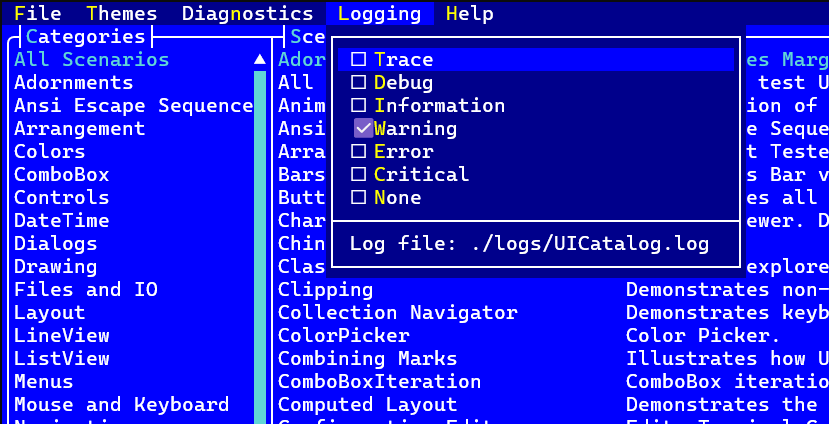
UICatalog
UICatalog includes built-in logging UI. Access via the Logging menu to:
- View logs in real-time
- Change log level at runtime
- Toggle Command, Mouse, and Keyboard tracing
- See scenario-specific logs
View Event Tracing
Terminal.Gui includes a unified tracing system (in the Terminal.Gui.Tracing namespace) for debugging event flow through the view hierarchy. Categories can be enabled independently and are thread-safe (isolated per async execution context via AsyncLocal<T>):
| Category | Flag | What It Traces |
|---|---|---|
| Command | TraceCategory.Command |
Command routing (InvokeCommand, bubbling, dispatch) |
| Mouse | TraceCategory.Mouse |
Mouse events (clicks, drags, wheel) |
| Keyboard | TraceCategory.Keyboard |
Keyboard events (key down, key up) |
| Navigation | TraceCategory.Navigation |
Focus and TabBehavior navigation |
| Lifecycle | TraceCategory.Lifecycle |
Application and Driver lifecycle events |
| Configuration | TraceCategory.Configuration |
Configuration load/apply operations (source loading, property assignment, JSON errors) |
| All | TraceCategory.All |
All categories combined |
Important
All trace methods are marked with [Conditional("DEBUG")] and have zero overhead in Release builds. The compiler removes trace calls entirely in Release configuration. Tests that assert on trace capture use #if DEBUG to validate capture in Debug and validate no-capture in Release.
Enabling Tracing
Via EnabledCategories flags:
using Terminal.Gui;
using Terminal.Gui.Tracing;

// Enable multiple categories at once
Trace.EnabledCategories = TraceCategory.Command | TraceCategory.Mouse;

// Enable configuration tracing to diagnose CM load/apply issues
Trace.EnabledCategories = TraceCategory.Configuration;

// Check enabled categories
if (Trace.EnabledCategories.HasFlag (TraceCategory.Command)) { ... }

// Enable all
Trace.EnabledCategories = TraceCategory.All;
Via scoped tracing (recommended for tests):
// Tracing automatically restored on dispose
using (Trace.PushScope (TraceCategory.Command | TraceCategory.Keyboard))
{
    // Tracing enabled only in this scope
    view.InvokeCommand (Command.Activate);
}
// Previous tracing state restored
When tracing is enabled, output automatically goes to Logging.Trace via the LoggingBackend. If no backend has been set and any category is enabled, LoggingBackend is automatically activated.
Via configuration:
{
  "Trace.EnabledCategories": ["Command", "Mouse"]
}
To enable configuration tracing (useful when diagnosing why a property isn't applied or a JSON file isn't loaded):
{
  "Trace.EnabledCategories": ["Configuration"]
}
Single values and legacy numeric formats are also supported:
{ "Trace.EnabledCategories": "Command" }
{ "Trace.EnabledCategories": 6 }
Via UICatalog: Toggle in Logging menu → Command Trace / Mouse Trace / Keyboard Trace
Custom Trace Backends
For testing or custom logging, use Trace.PushScope with a custom backend:
using Terminal.Gui.Tracing;

// Capture traces for assertions - thread-safe
ListBackend backend = new ();

using (Trace.PushScope (TraceCategory.Command, backend))
{
    // ... run code ...

    // Inspect captured traces (DEBUG builds only - entries will be empty in Release)
    foreach (TraceEntry entry in backend.Entries)
    {
        Console.WriteLine ($"{entry.Category}: {entry.Id} - {entry.Phase}");
    }
}
Available backends:
| Backend | Description |
|---|---|
NullBackend |
No-op (default when no categories are enabled) |
LoggingBackend |
Forwards to Logging.Trace() with category-specific formatting |
ListBackend |
Captures entries to a list for programmatic inspection in tests |
Testing with Tracing
Use TestLogging.Verbose to enable both logging and tracing in xUnit tests:
using Terminal.Gui.Tests;
using Terminal.Gui.Tracing;

[Fact]
public void MyTest ()
{
    // Enable logging and tracing in one call
    using (TestLogging.Verbose (_output, TraceCategory.Command))
    {
        // Logs and traces appear in xUnit test output
        CheckBox checkbox = new () { Id = "test" };
        checkbox.InvokeCommand (Command.Activate);
    }
}
This approach is thread-safe and works correctly with parallel test execution. Each async context (test, task) has its own isolated trace configuration via AsyncLocal<T>.
See Command Deep Dive - Command Route Tracing for detailed command tracing information.
Metrics
Monitor performance with dotnet-counters:
dotnet tool install dotnet-counters --global
dotnet-counters monitor -n YourProcessName --counters Terminal.Gui
Available metrics:
- Drain Input (ms) - Time to read input stream
- Invokes & Timers (ms) - Main loop callback execution time
- Iteration (ms) - Full main loop iteration time
- Redraws - Screen refresh count (high values indicate performance issues)